Welcome to Promy!
Promy is a Discord server advertising bot that helps you grow your community by connecting with thousands of other servers in our network.
What is Promy?
Promy is a comprehensive Discord server advertising bot that provides a powerful network of servers advertising to each other. When you bump your server, your ad is shown in every connected server's bump channel. In exchange, you receive ads from other servers in your bump channel.
Key Features
- Network advertising - reach thousands of users instantly
- Server partnerships for permanent ad placement
- Custom ad design with colors and banners
- Review system to build server reputation
- 100% free core features with optional Promy Plus
Why Choose Promy?
Network Effect
The more servers that join, the more exposure everyone gets
Instant Delivery
Your ad reaches all connected servers in seconds
Forever Free
All core features available at no cost
24/7 Support
Active support team ready to help
Quick Setup Guide
Get Promy up and running in your Discord server in just 5 easy steps.
Login to Web Dashboard
Visit the web dashboard:
promy.gg/login
Login with Discord and select your server to access the configuration panel.
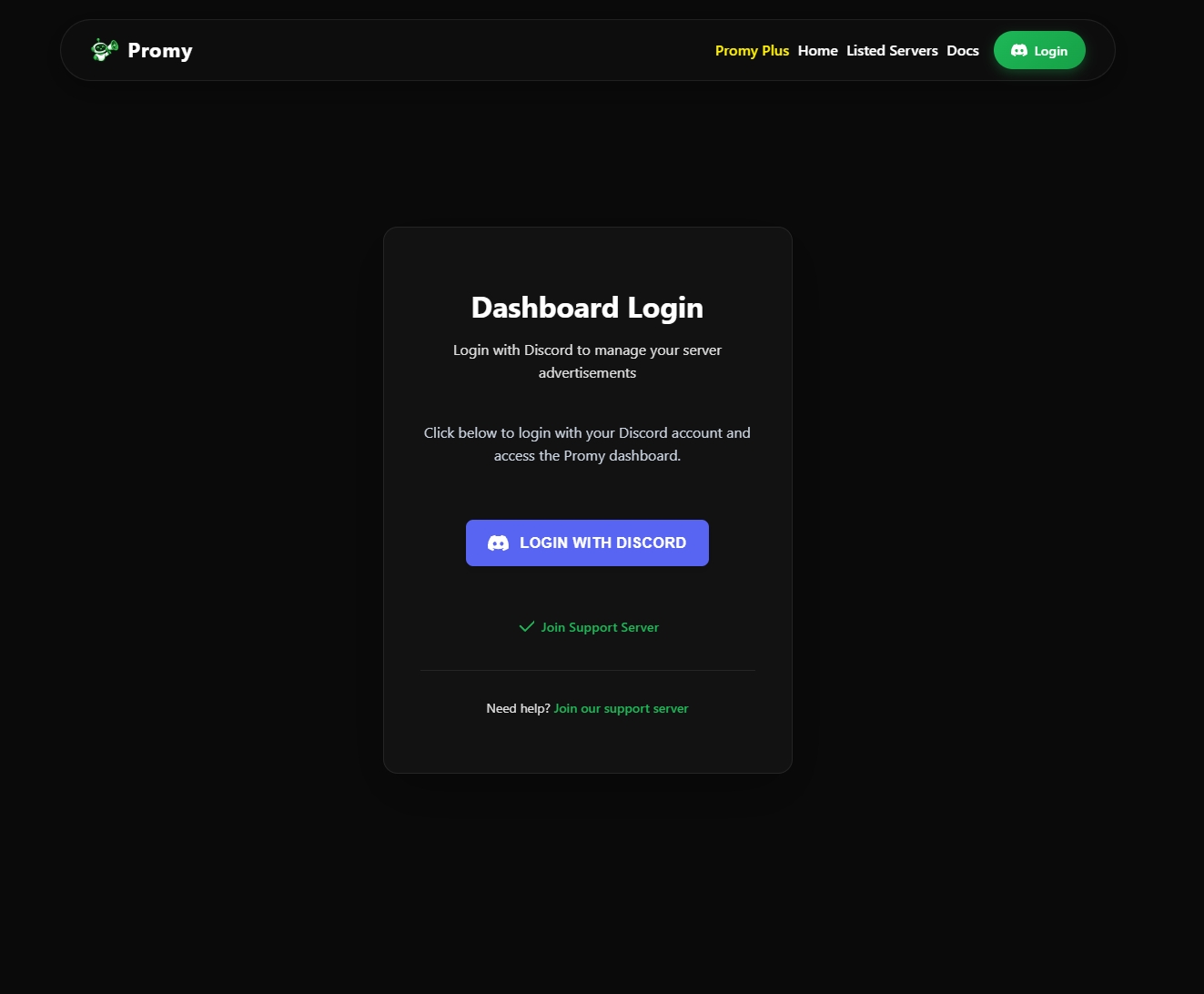
Dashboard Login Interface
Configure Your Bump Channel
In the web dashboard:
- Select a channel from the dropdown where you want to receive ads from other servers
- Optional: Select an unverified role to hide ads from new members
- The channel must be visible to
@everyone - Bot will validate permissions automatically
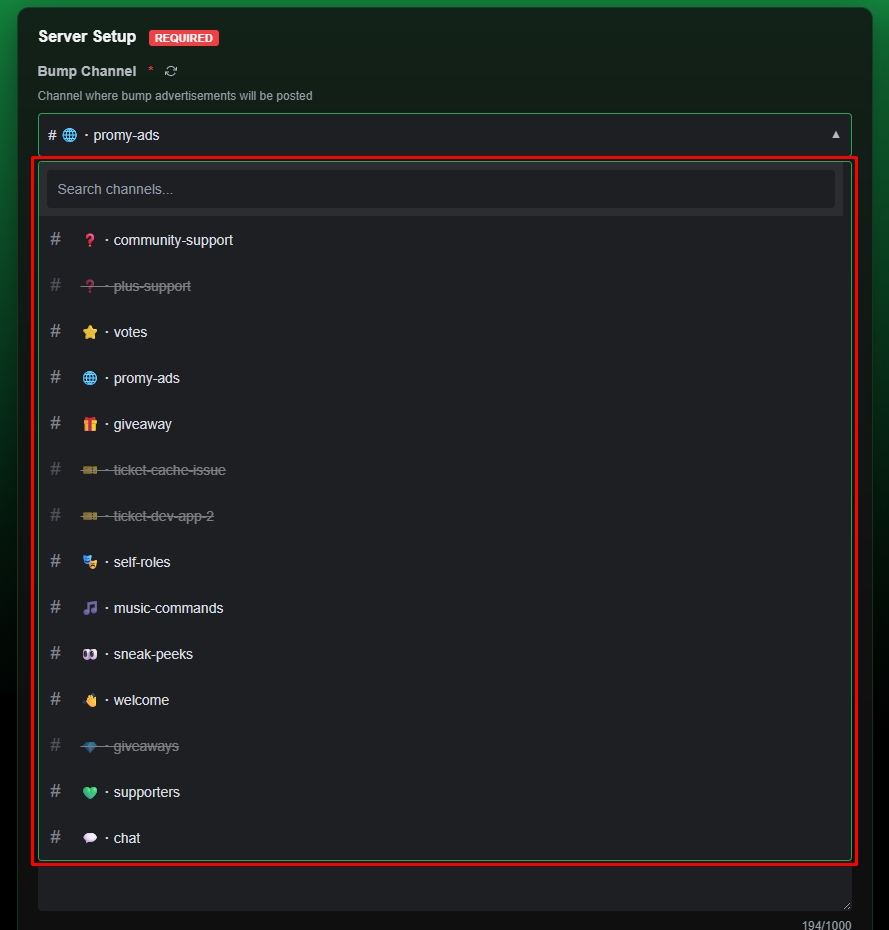
Bump Channel Selection
Write Your Server Description
In the description field:
- Describe your server in up to 1000 characters
- Make it engaging to attract new members
- See live preview as you type
- Supports Discord markdown formatting
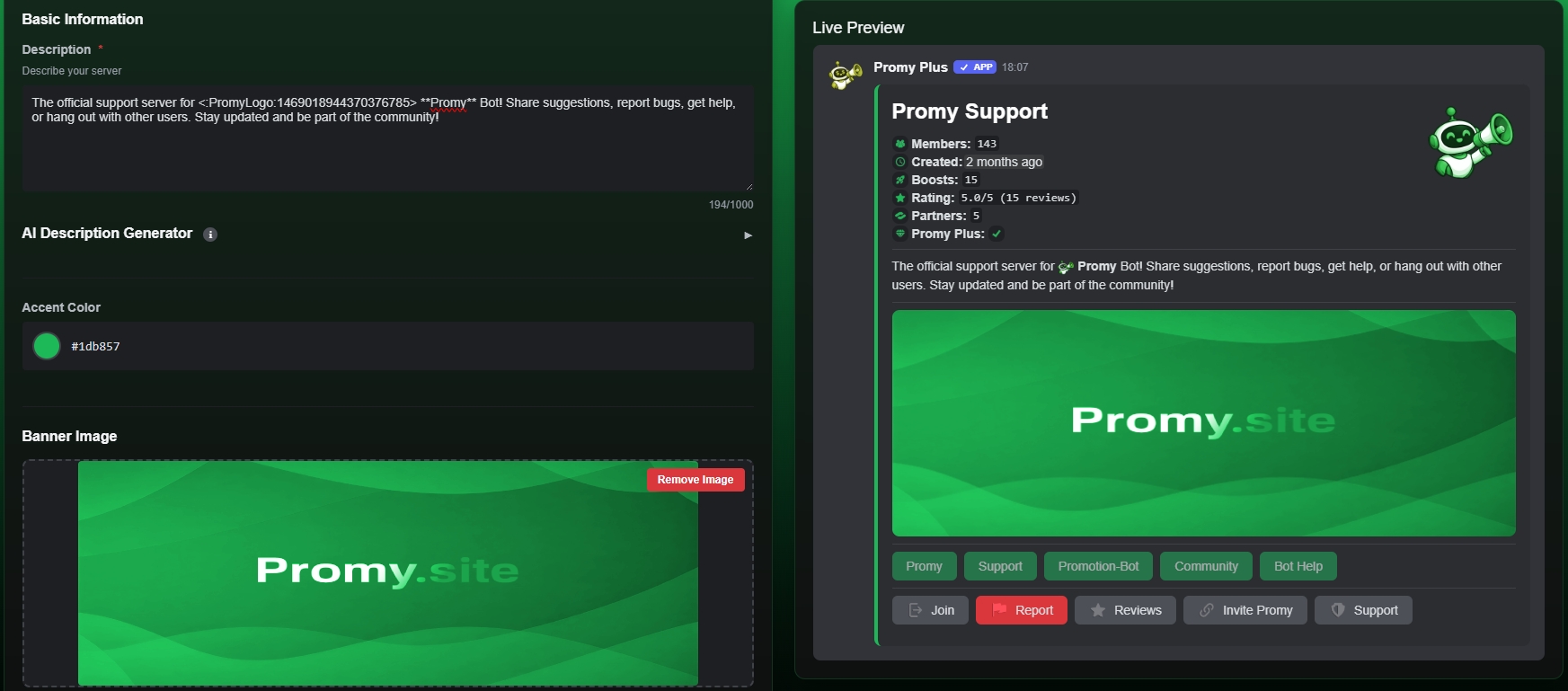
Description Editor with Live Preview
Add Server Tags
In the tags section:
- Free Users: Up to 3 tags in gray color
- Promy Plus Users: Up to 5 tags with custom colors (Blurple, Gray, Green, Red)
- Tags appear as colored buttons under your server information
- Click "Add Tag" to create new tags, click X to remove them
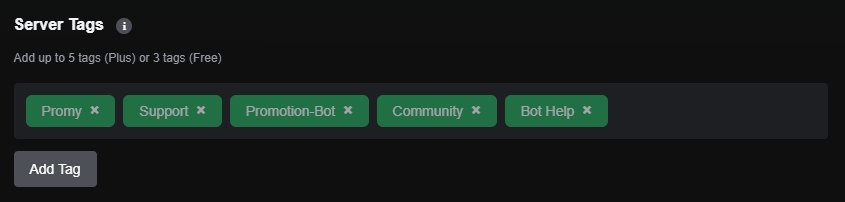
Tags Configuration Panel
Customize Your Ad (Optional)
Additional customization options:
- Accent Color: Use the color picker to choose your ad's accent color
- Banner Image (Promy Plus Only) - Upload a custom banner image for your server ad
- Custom Emojis (Promy Plus Only) - Replace default emojis with your own
- Review Notifications (Promy Plus Only) - Configure where to receive review notifications
Save Configuration
Click "Save Configuration" button to apply all changes.
Your settings will be saved and applied to all future bumps!
Start Advertising!
Back in Discord, run the command:
/bump
Broadcast your ad to all servers in the network! You can bump every 2 hours.
Preview Your Ad - Use /preview to see how your ad will look before bumping
/preview to see how your ad will look before bumping!
Web Dashboard
Prefer a visual interface? Use our web dashboard to configure your server!
Visual Configuration
Configure your server with an intuitive web interface
Live Preview
See exactly how your ad will look as you make changes
Analytics Dashboard
View detailed analytics with charts and graphs (Promy Plus)
Searchable Dropdowns
Easily find channels and roles with search functionality
How to Access the Dashboard
- Visit: promy.gg/login
- Login with Discord: Click "Login with Discord" to authenticate
- Select Your Server: Choose which server you want to configure
- Configure: Use the visual interface to set up your server
Dashboard Features
- Configuration Panel: Set bump channel, description, colors, tags, and more
- Live Preview: See your ad update in real-time as you make changes
- Channel/Role Search: Type to search through your channels and roles
- Image Upload: Drag and drop banner images (Promy Plus)
- Bot Customization: Set a custom avatar, banner, name, and bio for the bot in your server (Promy Plus)
- Partnerships Management: Send, accept, deny, and manage partnership requests via web interface
- Audit Logs: Track all configuration changes and partnership actions with detailed history
- Analytics Page: View engagement metrics, charts, and performance data (Promy Plus)
- Export/Import: Save your configuration as JSON for backup
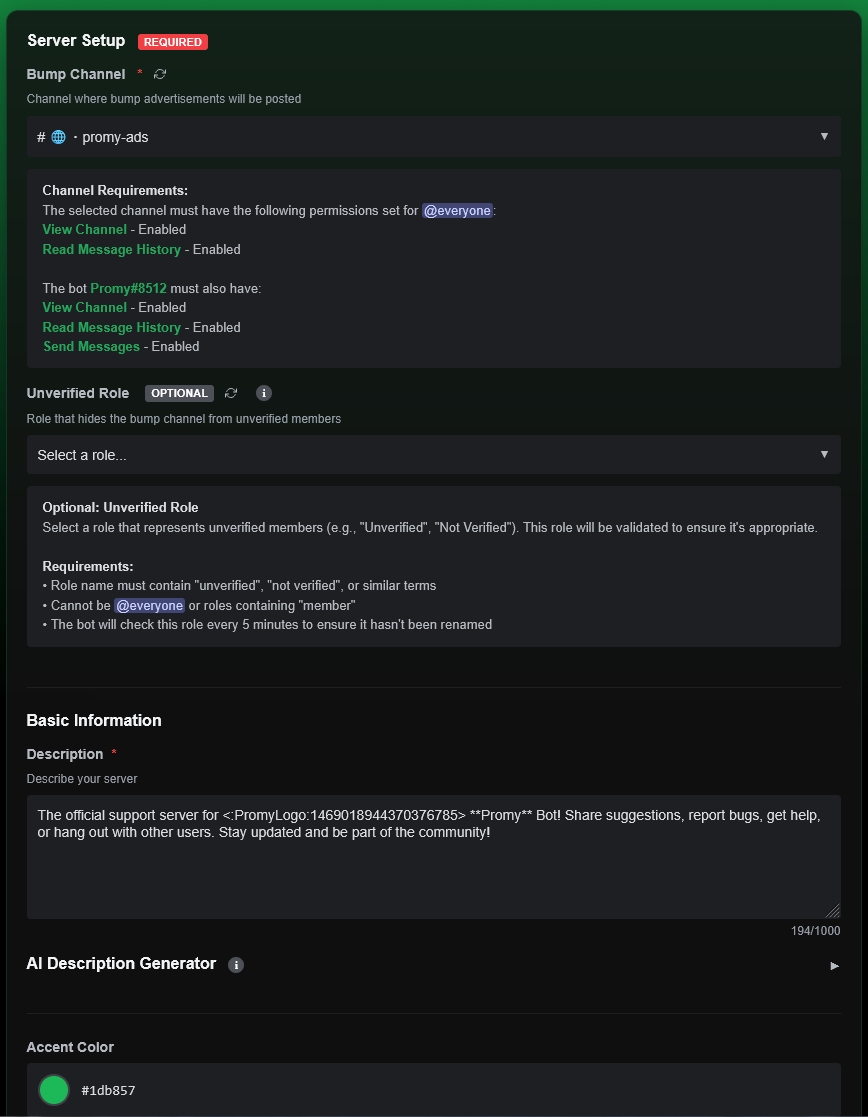
Main Configuration Panel with Live Preview
Partnerships Web Panel
Manage all your server partnerships through an intuitive web interface.
Features:
- Request Partnerships: Send partnership requests by entering a server ID
- Manage Incoming Requests: View, accept, or deny partnership requests from other servers
- View Active Partners: See all your current partnerships with server details
- Track Outgoing Requests: Monitor the status of partnership requests you've sent
- Toggle Incoming Requests: Enable or disable receiving new partnership requests
- Blacklist Servers: Block specific servers from sending you partnership requests
- View Partner Ads: Preview how partner ads will look in your channel
How to Access:
- Login to the web dashboard at promy.gg/login
- Select your server from the dashboard
- Click on "Partnerships" in the sidebar navigation
- Use the tabs to switch between Active Partners, Incoming Requests, and Outgoing Requests
Audit Logs Panel
Track every action taken on your server configuration with comprehensive audit logging.
What Gets Logged:
- Configuration Changes: Description, bump channel, unverified role, accent color, tags
- Partnership Actions: Requests sent/accepted/denied, partnerships removed, blacklist changes
- Banner Management: Banner uploads, approvals, rejections, removals
- Custom Emojis: Emoji updates, approvals, rejections
- Review Settings: Review channel and notification message changes
- Config Import/Export: Track when configurations are backed up or restored
Audit Log Features:
- User Attribution: See who made each change with username and avatar
- Timestamp Tracking: Precise timestamps for every action
- Before/After Comparison: View what changed with side-by-side comparison
- Advanced Filtering: Filter by user, action type, or specific field
- Pagination: Browse through historical logs with easy navigation
- Statistics Dashboard: See total actions, last 24 hours, and last 7 days activity
How to Access:
- Login to the web dashboard at promy.gg/login
- Select your server from the dashboard
- Click on "Audit Logs" in the sidebar navigation
- Use filters to find specific actions or users
- Click on any log entry to expand and view detailed information
Server Partnerships
Create direct, permanent ad exchanges with specific servers.
What are Partnerships?
Server Partnerships allow you to create direct, permanent ad exchanges with specific servers. Unlike regular bumps that go to all servers, partnership ads stay permanently in your partner's channel!
Why Use Partnerships?
- Permanent Placement - Your ad stays in your partner's channel forever
- Auto-Updates - Ads refresh every 6 hours with latest stats
- Targeted Growth - Partner with servers in similar niches
- Build Relationships - Create lasting connections with communities
- Always Current - Stats update automatically even when you're offline
How Partnerships Work
- Access Web Dashboard: Login to the web dashboard at promy.gg/login and select your server
- Navigate to Partnerships: Click on "Partnerships" in the sidebar navigation
- Send Request: Enter the target server ID and select a channel where their ad will appear. The channel must be visible to
@everyone. - They Accept: The other server owner receives a notification and can accept/deny via their web dashboard
- Ads Exchanged: Both server ads are posted in the selected channels and stay there permanently!
- Auto-Updates: Partnership ads are automatically updated every 6 hours with your latest stats (member count, ratings, boosts, server name, icon, description, etc.) so they never look outdated!
- Manage Anytime: View, manage, and remove partnerships through the web dashboard
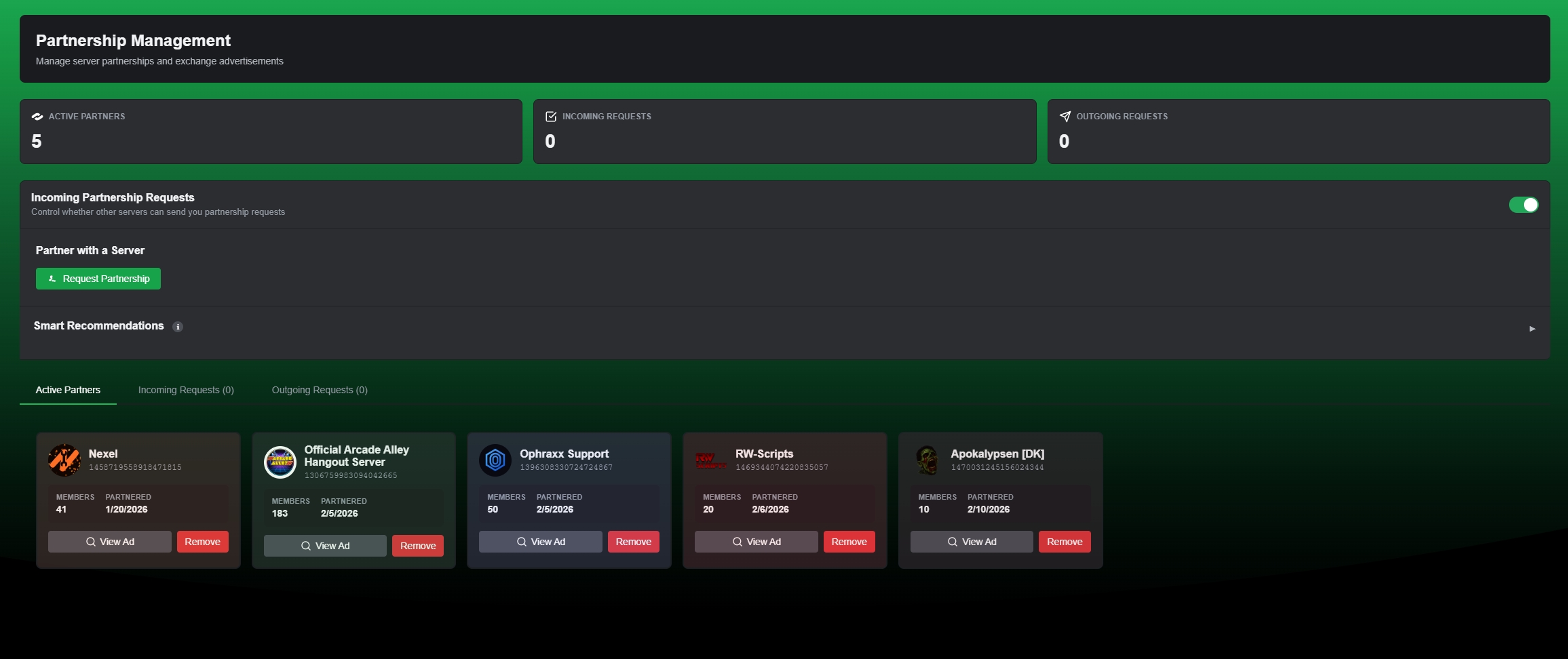
Partnership Management Dashboard
Managing Your Partnerships
Active Partnerships
View all your current active partnerships with detailed server information.

Active Partnerships View
Incoming Partnership Requests
Review and respond to partnership requests from other servers.

Incoming Partnership Requests
Outgoing Partnership Requests
Track the status of partnership requests you've sent to other servers.

Outgoing Partnership Requests
All Commands
Complete command reference for Promy.
Advertising Commands
| Command | Description |
|---|---|
/bump |
Send your server ad to all connected servers (2-hour cooldown) |
/preview |
Preview how your ad will look before bumping |
/review |
Leave a review for the current server |
Discovery Commands
| Command | Description |
|---|---|
/search tags:[tags] |
Search for servers by tags (e.g., Gaming, Social, Anime). 5-minute cooldown per user. Smart recommendations available via web dashboard (Promy Plus only) |
Promy Plus Commands
| Command | Description |
|---|---|
/redeem |
Activate Promy Plus with your purchase key |
Utility Commands
| Command | Description |
|---|---|
/help |
Display the help menu with command information and quick links |
How Promy Works
Understanding the network effect and advertising cycle.
The Advertising Cycle
- Setup Your Bump Channel: Choose a channel visible to @everyone where ads will appear
- Create Your Server Ad: Write an engaging description and customize with colors and banners
- Bump Your Server: When you run /bump, your ad broadcasts to all connected servers instantly
- Receive Ads: Other servers' ads appear in your bump channel, creating fair exchange
- Grow Together: The more servers that join, the more exposure everyone gets!
Server Tags System
- Free Users: Up to 3 tags in gray color
- Promy Plus Users: Up to 5 tags with custom colors (Blurple, Gray, Green, Red)
- Tags help users quickly identify server types (Gaming, Anime, Music, etc.)
- Tags appear as colored buttons under server information
Bump System
Manual Bumping
- Run /bump to advertise your server
- 2-hour cooldown between bumps
- Get reminded when cooldown expires
- 10-second server cooldown prevents spam
Bump Reminders
- Get notified when you can bump again (2 hours after last bump)
- Reminder sent in the same channel where you bumped
- Multiple users who try to bump during cooldown will all be notified
Auto-Bump (Promy Plus)
- Your server is automatically advertised every 2 hours
- No manual work required
- Maximum network exposure 24/7
Cooldowns & Limits
| Feature | Limit |
|---|---|
| Manual Bump Cooldown | 2 hours between bumps |
| Server Cooldown | 10 seconds between bumps (prevents spam) |
| Promy Plus Auto-Bump | Every 2 hours automatically |
| Description | Max 1000 characters |
| Tags | 3 free, 5 Promy Plus |
| Reviews | One per user per server |
Fair Usage Policy
- Your bump channel must be visible to
@everyone - Ads are disabled if channel permissions change
- Inappropriate content results in blacklisting
- Promy Plus servers get auto-bump as a benefit
Why The Network Works
- Mutual Benefit: Every server gives and receives exposure equally
- Scalable Growth: As the network grows, everyone benefits from increased reach
- Targeted Audience: Reach Discord users actively looking for new communities
- No Cost Barrier: Core features are free for all servers
- Quality Control: Fair usage policies keep the network valuable
Advanced Configuration
Fine-tune how your advertisement looks: emojis, accent color, and the ad banner.
Custom Emoji Configuration (Promy Plus)
Replace default bot emojis with your server's custom emojis for a personalized advertising experience.
How to Use Custom Emojis
- Ensure Promy Plus is active on your server
- Bot must be in the server containing your custom emojis
- Use format:
<:emoji_name:emoji_id>in descriptions - For animated emojis:
<a:emoji_name:emoji_id>
\:emoji_name: in Discord to reveal the full emoji format with its ID.
Color Customization
Customize your advertisement's accent color to match your server's branding.
- Use hex color codes (e.g.,
#1db856,#FF5733) - Color appears on embed sidebar and accent elements
- Use the web dashboard color picker for visual selection
- Color updates apply to all future bumps and partnership ads
Banner Image Setup (Promy Plus)
Supported Formats
- PNG, JPG, JPEG formats
- Maximum file size: 8MB
- Recommended dimensions: 1920x1080 (16:9 aspect ratio)
- Minimum resolution: 800x450 for clarity
Best Practices for Banner Images
- Use high-resolution images that represent your server's theme
- Avoid excessive text in images (use description field instead)
- Ensure images comply with Discord ToS and Promy guidelines
- Test on both dark and light Discord themes
- Consider mobile viewing - important details should be centered
Review Notification Configuration (Promy Plus)
Get instant notifications when users leave reviews for your server.
- Configure channel via the web dashboard
- Notifications sent within 60 seconds of new review
- Includes reviewer username, rating, and review text
- Helps you respond quickly to feedback
Bot Customization
Give Promy a different name, avatar, banner, and bio inside your own server, without changing how it looks anywhere else.
What It Does
Discord lets a bot use a different nickname, avatar, banner, and bio on a per-server basis, without touching its global profile in every other server it's in. The Bot Customization page in the web dashboard sets those per-server values for Promy in your server.
It's a Promy Plus feature. Servers without an active Plus subscription see Promy's standard branding here and can't submit changes.
What You Can Change
PNG, JPG, or GIF, up to 50MB. Recommended 80x80.
PNG, JPG, or GIF, up to 50MB. Recommended 680x240.
Required, up to 32 characters. Defaults to "Promy Plus".
Optional, up to 120 characters. Leave blank to keep Promy's default bio.
How to Set It Up
- Login to the web dashboard at promy.gg/login and select your server
- Click Bot Customization in the sidebar navigation
- Upload an avatar and/or banner, and set a display name and bio
- Click Save Customization
Review and Approval
Avatar, banner, name, and bio changes aren't applied instantly. They're submitted for moderator review first, and go live once approved.
- While a submission is pending, the dashboard shows a "Pending approval" notice and further changes are locked until it's resolved
- Approved changes are applied to the bot's profile in your server within a few minutes
- If a submission is denied, you can submit new changes right away
- After an approval, there's a 2-hour cooldown before you can submit again
Resetting to Default
Click Reset to Default to clear your custom avatar, banner, name, and bio. Once that's saved, Promy falls back to its standard Promy Plus branding for your server. If your server's Promy Plus subscription lapses, custom branding is dropped automatically and Promy reverts to its normal, non-Plus profile.
Server Discovery
Explore how Promy's powerful discovery system connects users with communities that match their interests.
Search Functionality
The /search command allows users to find servers based on tags and categories.
How to Use Search
- Use
/search tags:[tag1,tag2,tag3]to search by tags - Separate multiple tags with commas for better results
- Results are ranked by relevance and activity
- Each search has a 5-minute cooldown per user
AI-Powered Recommendations
Promy Plus servers can access AI-powered server recommendations based on their existing tags and community profile.
- Smart Matching: AI analyzes your server's tags to find similar communities
- Partner Discovery: Find potential partnership opportunities
- Growth Insights: Discover which servers attract similar audiences
- Real-time Updates: Recommendations refresh as your server evolves
Tag Optimization Strategies
Choosing the right tags is crucial for discovery visibility.
Specific Tags
Use 1-2 highly specific tags that define your niche (e.g., "Valorant", "D&D")
Broad Categories
Include 1 broad category tag for wider reach (e.g., "Gaming", "Social")
Trending Tags
Monitor popular tags in your niche and adapt seasonally
Review System
Build trust and credibility through Promy's comprehensive server review system.
Leaving Reviews
Users can leave reviews for servers they've joined through Promy.
How to Leave a Review
- Use
/reviewcommand in the target server - Select a star rating (1-5 stars)
- Write a review (1-500 characters)
- Submit - review appears on server's profile immediately
Review Restrictions
- One review per server per user
- Cannot review your own server
- Server must have Promy installed and configured
- 10-minute cooldown for editing reviews
Changing or Deleting Reviews
If you have already submitted a review, you can change it or delete it at any time.
- Use
/reviewwith random rating and text command in the server you already reviewed - Promy will display your current review
- Click "Change Review" to update your rating or text
- Click "Delete Review" to remove it permanently
Managing Reviews (Server Owners)
Server owners with Promy Plus can receive notifications when new reviews are posted.
Review Notifications Setup
- Ensure Promy Plus is active
- Login to the web dashboard at promy.gg/login
- Select the channel for review notifications in the configuration panel
- Grant bot "Send Messages" permission in that channel
How Reviews Impact Your Server
Discovery Ranking
Higher-rated servers appear more prominently in search results
Trust Building
Reviews provide social proof to potential new members
Higher Visibility
Well-reviewed servers stand out in search results
Review Moderation
Promy staff reviews flagged reviews to ensure quality and fairness.
- Report inappropriate reviews via support server
- Include screenshot evidence when reporting
- Moderators review reports within 24-48 hours
- Removed reviews do not count toward server's average rating
Architecture
Technical overview of Promy's robust, scalable Discord bot architecture.
Technology Stack
Promy is built with modern, production-grade technologies.
- Runtime: Node.js (JavaScript/ES6+)
- Discord API: discord.js v14
- Database: MongoDB with Mongoose ODM
- Hosting: Cloud infrastructure with 99.9% uptime SLA
- API Layer: RESTful design with rate limiting
Core System Components
Command Handler
Slash command processing with validation and error handling
Event System
Real-time Discord event processing and routing
Task Scheduler
Background jobs for auto-bump, syncing, and cleanup
Security Layer
Permission validation, rate limiting, and abuse prevention
Data Architecture
Promy uses a document-based database structure optimized for Discord guilds.
Key Collections
- Guild Configs: Server settings, bump channels, premium status
- Partnerships: Partnership relationships and ad synchronization
- Reviews: User-submitted reviews and ratings
- Analytics: Engagement metrics and leaderboard data
- Premium Keys: Promy Plus activation and expiration tracking
Scalability & Performance
Built to handle thousands of concurrent servers efficiently.
- Horizontal scaling with load balancing
- Database indexing for sub-100ms query times
- Caching layer for frequently accessed data
- Async/await patterns for non-blocking operations
Background Services
Explore the 30+ automated services that power Promy's functionality 24/7.
Advertising Services
Auto-Bump Checker
Runs every 2 hours for Promy Plus servers with automatic advertising
Bump Reminder Service
Notifies servers when manual bump cooldown expires
Ad Message Monitor
Tracks ad message lifecycle and handles deletions
Partnership Services
- Partner Ad Sync: Updates partnership advertisements every 6 hours
- Partner Channel Monitor: Validates channel permissions and accessibility
- Partnership Request Manager: Handles incoming/outgoing partnership requests
Premium Services
Premium Role Sync
Assigns and removes Promy Plus role based on active subscriptions
Key Expiration Checker
Monitors Plus keys and sends expiration warnings
Premium Branding
Applies custom emojis, colors, and banners to Plus servers
Bot Customization Applier
Checks for approved avatar, banner, name, and bio changes every 5 minutes and applies them, reverting to default branding if Plus lapses
Monitoring & Maintenance
- Bump Channel Audit: Validates bump channel permissions hourly
- Invite Link Checker: Ensures server invite links are valid (daily)
- Message Expiration Service: Cleans up temporary messages
- Bot Stats Tracker: Monitors performance and uptime metrics
- Emoji Validation: Verifies custom emoji accessibility
Discovery & Search
- Tag Sync: Updates tag indexes for search optimization
- Review Sync Service: Processes and displays new reviews
Cleanup Services
- DM Cleanup: Removes old direct messages from bot
- Guild Config Cleanup: Archives configs for deleted servers
- Admin Panel Cleanup: Removes expired admin messages
Rate Limits & Cooldowns
Understanding Promy's rate limiting system helps prevent spam and ensures fair usage across all servers.
Command-Specific Cooldowns
| Command | Cooldown | Scope |
|---|---|---|
/bump |
2 hours | Per server |
/search |
5 minutes | Per user |
/review (edit) |
10 minutes | Per user |
/help |
5 seconds | Per user |
/preview |
5 seconds | Per user |
Auto-Bump Frequency (Promy Plus)
Automatic bumps occur every 2 hours for Promy Plus servers.
- Runs at fixed intervals (no randomization)
- Unaffected by manual bump cooldown
- Continues even if server is offline temporarily
- Stops if bump channel becomes inaccessible
Review System Limits
- One review per server per user
- Up to 500 characters per review
- 10-minute cooldown between editing a review
- Users can change or delete their own review at any time via
/review
Global Rate Limits
Discord API rate limits apply to all bots. Promy implements smart throttling to stay within limits.
Cooldown Management
Cooldowns cannot be bypassed or reset by users. They exist to:
- Prevent spam and maintain content quality
- Ensure fair distribution of advertising visibility
- Protect Discord API resources from overuse
- Maintain network performance for all users
Permissions Guide
Comprehensive guide to Discord permissions required for Promy's features.
Required Bot Permissions
Promy needs the following permissions to function properly:
| Permission | Required For |
|---|---|
| View Channels | Access bump and partnership channels |
| Send Messages | Post bump ads and partnership messages |
| Embed Links | Display formatted advertisements |
| Read Message History | Track and update previous ads |
| Add Reactions | Interactive features and engagement tracking |
| Manage Roles | Assign Promy Plus role (optional) |
User Command Permissions
Different commands require different user permission levels.
Administrator/Manage Server Required
- Web Dashboard - Configure bot settings and manage partnerships
All Users Can Access
-
/bump- Bump the server -
/preview- Preview the server's ad -
/search- Search for servers -
/review- Leave a review -
/help- Get help information
Manage Server Required
-
/redeem- Redeem a Promy Plus key
Channel-Specific Permissions
Ensure Promy has these permissions in configured channels:
Bump Channel
View Channel, Send Messages, Embed Links, Read Message History
Partnership Channel
View Channel, Send Messages, Embed Links, Manage Messages (to update ads)
Review Notifications
View Channel, Send Messages, Embed Links
Permission Troubleshooting
Common Issues
- "Missing Permissions" error: Bot role is below channel permission overrides
- "Cannot send messages": Channel permissions deny the bot access
- "Slash commands not appearing": Application commands disabled in server settings
Role Hierarchy Best Practices
For optimal functionality:
- Place Promy's role near the top of your role list
- Ensure it's above any "Unverified" or restricted roles
- If using Promy Plus role, place it below the bot's role
- Avoid giving Promy "Administrator" permission (security risk)
Performance Optimization
Maximize your server's growth and visibility with strategic optimization techniques.
Bump Timing Optimization
Strategic bump timing can significantly increase visibility.
Best Times to Bump
- Peak Hours: 6-10 PM in your target timezone
- Weekends: Saturday and Sunday afternoons
- Avoid: Late night (2-6 AM) when activity is lowest
Description Best Practices
Your description is the first thing potential members see - make it count!
Winning Description Formula
- Hook (1-2 lines): Grab attention with your unique selling point
- Features (3-5 bullet points): What makes your server special
- Call-to-Action: Encourage users to join
- Visual Appeal: Use emojis strategically (not excessively)
Example Structure
🎮 The most active Valorant community with 5,000+ members!
✨ Daily tournaments & giveaways
🏆 Ranked matchmaking & coaching
🎯 LFG channels for all ranks
Join today and find your perfect squad!
Tag Selection Strategy
Niche Specific (60%)
Use 2-3 highly specific tags that exactly match your server's focus
Broad Category (40%)
Include 1-2 broad tags for wider reach and discovery
Partnership Growth Strategy
Strategic partnerships can double your exposure.
Ideal Partner Criteria
- Similar size (within 50% of your member count)
- Complementary niche (not direct competitor)
- Active Promy Plus subscription (for auto-updating ads)
- Similar activity level and engagement
Review Management for Growth
Positive reviews dramatically increase conversion rates.
Building Review Momentum
- Ask engaged members to leave honest reviews
- Respond to feedback (through announcements)
- Address negative reviews by improving your server
- Aim for 10+ reviews before heavily promoting
Using Analytics for Optimization
Promy Plus analytics reveal what's working and what needs improvement.
Key Metrics to Track
- Bump Performance: Join rate per bump session
- Partnership ROI: Which partnerships drive most traffic
- Peak Times: When your ads get most clicks
- Review Trends: Common praise and complaints
Security & Moderation
Protect your server and maintain quality content with proper security practices.
Permission Security
Proper permission configuration prevents abuse and unauthorized access.
Recommended Permission Setup
- Grant only required permissions (see Permissions Guide)
- Use channel-specific permission overrides
- Restrict web dashboard access to trusted admins only
- Monitor role hierarchy to prevent escalation
Bump Channel Security
Configure your bump channel to prevent spam and maintain quality.
Best Practices
- Dedicated Channel: Create a channel specifically for Promy bumps
- Unverified Role Protection: Prevent unverified users from viewing bump channel
- Read-Only: Disable member message permissions (optional)
- Slowmode: Apply slowmode to prevent chat spam
Content Moderation
Promy enforces strict content policies to maintain network quality.
Prohibited Content
- NSFW content in server descriptions or tags
- Scam links, malware, or phishing attempts
- Hate speech, harassment, or discriminatory content
- Spam servers, raid coordination, or bot farms
- Discord ToS violations of any kind
Partnership Verification
Vet potential partners to avoid problematic partnerships.
Partnership Safety Checklist
- Visit the partner server before accepting
- Check server rules and content for ToS compliance
- Verify they have active moderation
- Review their Promy rating and reviews
- Ensure partnership channel is appropriate
Review Moderation Policy
How Promy handles review moderation and disputes.
- All reviews are screened for guideline compliance
- Fake reviews, spam, or abusive content is removed
- Server owners can report problematic reviews
- Review disputes resolved by Promy staff within 48 hours
Account Security
Protect your Discord account to prevent unauthorized bot access.
Security Best Practices
- Enable Discord 2FA (two-factor authentication)
- Never share your Discord token or credentials
- Regularly audit server permissions and roles
- Remove inactive or untrusted administrators
- Monitor server audit logs for suspicious activity
Reporting Security Issues
If you discover a security vulnerability or abuse:
- Open a ticket in Promy Support Server
- Provide detailed information and evidence (screenshots)
- Do not publicly disclose vulnerabilities before reporting
- Allow 72 hours for staff response and investigation
Growth Strategies
Proven strategies to accelerate your server's growth using Promy's full feature set.
Quick Wins (First 7 Days)
Foundational steps for immediate growth impact.
Complete Setup
Full profile with description, tags, color, and banner (Plus)
First Partnerships
Establish 3-5 quality partnerships in your niche
Consistent Bumping
Bump every 2 hours during peak times or use auto-bump
Get Reviews
Encourage first 5-10 members to leave honest reviews
30-Day Growth Plan
Structured approach to building momentum.
Week 1: Foundation
- Complete Promy setup with optimized description
- Add strategic tags (2-3 specific, 1 broad)
- Begin bumping during peak hours
- Partner with 3 similar-sized servers
Week 2: Optimization
- Analyze which tags drive most traffic
- A/B test different descriptions (change weekly)
- Expand partnerships to 5-7 servers
- Collect first 10 reviews
Week 3: Scaling
- Consider Promy Plus for auto-bump and analytics
- Add custom banner to stand out
- Target partnerships with slightly larger servers
- Aim for 4+ star average rating
Week 4: Refinement
- Use web dashboard analytics to identify peak performance times
- Refine description based on what converts best
- Focus on retention (not just acquisition)
Advanced Growth Tactics
Cross-Promotion Strategy
Leverage Promy with other growth channels:
- Include Promy link in other listing sites
- Mention your Promy rating in recruitment posts
- Share partnership milestones to attract more partners
Seasonal Optimization
Adjust your strategy based on timing:
- Summer (June-August): Higher Discord activity, increase bump frequency
- Back to School (September): Students looking for communities, emphasize social aspects
- Holidays (November-December): Highlight events, giveaways, festive activities
- New Year (January): "Fresh start" messaging, beginner-friendly emphasis
Retention Over Acquisition
Growth isn't just about getting members - it's about keeping them.
Retention Strategies
- Welcome new members from Promy personally
- Create onboarding flow that highlights your best channels
- Host events within first week of members joining
- Use bump channel as engagement hub, not just ads
- Monitor which Promy partnerships bring highest-quality members
Measuring Success
Track these KPIs to evaluate your growth strategy:
| Metric | Good Target |
|---|---|
| Joins per bump | 3-5 for small servers, 10+ for established |
| Average review rating | 4.0+ stars |
| Partnership reciprocation | 60%+ acceptance rate |
| 7-day retention | 50%+ of new members stay |
Success Stories
Learn from servers that achieved rapid growth with Promy.
🎮 Gaming Community (0 → 1,000 members in 45 days)
- Promy Plus auto-bump every 2 hours
- 10 strategic partnerships with complementary servers
- Custom banner with eye-catching design
- Description updated weekly based on web dashboard analytics
- Maintained 4.7-star average from 25+ reviews
🎨 Art Server (500 → 2,500 members in 60 days)
- Focused on high-quality reviews (20+ reviews, 4.9 avg)
- Partnerships with 8 complementary creative servers
- Used AI recommendations to find perfect partner matches
- Leveraged review ratings in external promotion
Troubleshooting
Encountering issues with Promy? Visit our comprehensive troubleshooting guide.
Visit Troubleshooting Guide
Comprehensive solutions for setup, commands, premium features, and errors
Quick Troubleshooting Tips
Commands Not Working?
Check bot permissions and re-invite if needed
On Cooldown?
Review rate limits or upgrade to Promy Plus
Premium Issues?
Verify Plus key and expiration status
Still Stuck?
Join support server for live assistance
Issue Categories
Our troubleshooting guide covers:
- Setup Issues: Bot configuration, channels, permissions
- Command Issues: Bumps, search, partnerships, reviews
- Promy Plus: Promy Plus features, banners, analytics
- Errors: Permission errors, API issues, blacklists
- General Questions: Features, limits, best practices
Getting Help
We're here to help you get the most out of Promy!
Join Our Support Server
The fastest way to get help is by joining our Discord support server!
Live Support
Get help from our staff team in real-time
Community Discussion
Chat with other server owners using Promy
Feature Suggestions
Request new features or improvements
Promy Plus Purchases
Buy Promy Plus keys directly
Common Issues
Ads Not Appearing?
- Check your bump channel permissions - must be visible to @everyone
- Bot needs "View Channel" and "Send Messages" permissions
- Verify setup is complete via the web dashboard
Can't Bump?
- Wait for the 3-hour cooldown to expire
- You'll get a reminder when ready
- Make sure the bot is online
Promy Plus Key Not Working?
- Verify you redeemed the key in the correct server
- Check if the key was already used
- Contact support if issues persist
Bot Not Responding?
- Check that bot has "Use Application Commands" permission
- Verify bot role has required permissions
- Try the command in a different channel
Contact Support
If you can't find an answer to your question:
- Join the support server (fastest response)
- Check existing documentation pages
- Ask in community channels
- Open a support ticket for complex issues
Feature Requests
Have an idea for a new feature? We'd love to hear it!
- Post in our support server's suggestions channel
- Vote on existing suggestions
- Discuss ideas with the community
- Developers actively review all suggestions
Report Issues
Found a bug or exploit?
- Report immediately in support server
- Use the bug report channel
- Provide detailed information
- Include screenshots if possible
- Be responsible - don't abuse exploits